About Workbooks
A modern productivity suite for creating, organizing, and sharing your work.
Workbooks brings together powerful tools for documents, books, and presentations in a single workspace. Create professional content, collaborate with others, organize related work into projects, and access everything securely from anywhere.
Integrated workspaceManage documents, books, and presentations together within a unified project.
Collaboration & sharingWork with teammates, control access, and share content with confidence.
Cloud-poweredSecure storage, version history, and access across devices.
About Docs
Professional document creation for reports, notes, specifications, and team collaboration.
Docs is a versatile document editor for reports, proposals, specifications, knowledge bases, and everyday writing. Create polished content with rich formatting, media, comments, and sharing tools.
Clean formattingHeadings, lists, tables, code, and quotes.
Smart collaborationComments, and share controls.
PDF-readyPrint or export your Doc as a PDF for offline reading and sharing.
About Books
Compose long-form content with chapters and a table of contents.
Book helps you structure larger works — reports, manuals, guides, research documents, and publications. Organize chapters, manage references, and keep consistent styles across your project.
Chapters & TOCOrganize content into chapters and sections with automatic navigation.
Consistent stylingGlobal typography and page presets.
CitationsEndnotes and references where supported.
RecoveryTrash and restore chapters or sections without losing your work.
PDF-readyPrint or export your Book as a PDF for offline reading and sharing.
Tip: Start in Docs, then upgrade to Book as your project grows. The Docs can be imported into Book sections with headings preserved.
About Slides
Build professional slide decks for meetings, training, reports, and presentations.
Slides helps you turn ideas into clear, visual decks for classes, teams, reports, and pitches. Start with a title and content slide, add more slides as your story grows, and switch slides to title or section-header layouts when you need structure.
Design themesTry modest or colorful themes across your deck, then apply the one that fits.
Agenda slideGenerate a clickable agenda from slide titles, helping presenters and viewers quickly understand the deck structure, navigate key topics, and jump directly to important sections.
Slide recoveryTrash slides when you no longer need them, and recover them if you change your mind.
PDF-readyPrint or export your deck as a PDF for offline presenting and sharing. Slides print one per page in 16:9 landscape format with no margins.
Tip: Use title slides for the beginning, section-header slides to divide topics, and content slides for the main story.
Help
Common tasks for collaborating and publishing your work.Sharing
Share a Workbook or an individual page with precise roles:
- Viewer — read only.
- Commenter — read + comment.
- Editor — full edit access.
- Open the Workbook or page.
- Click Share → choose people .
- Select a role.
Privacy note: Guest access respects your share settings; you can revoke guest access at any time.
Important: Sharing with unique IDs
When you share a Workbook (or its parts) with a user’s unique ID, the share is tied to that specific account. The unique handle is only used to identify the user at the moment of sharing.
- The document remains shared even if the user later changes their handle.
- If another user chooses the same handle in the future, the document will not be shared with them.
Print
Print clean copies of Docs, Books, or Slides:
- Open the Doc, Book, or Slide deck, then choose File → Print (or Ctrl/⌘+P).
- For Docs and Books, select a preset such as A4 or Letter, then adjust margins and scale as needed.
- For Slides, print or export the deck as a PDF for offline presenting and sharing.
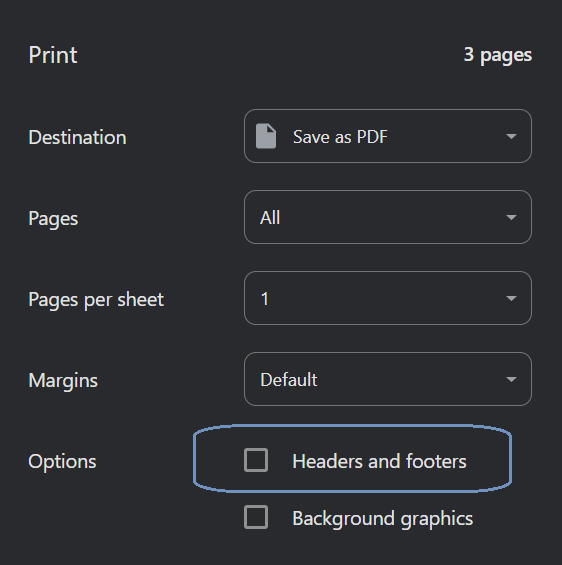
Note: For a clean layout, uncheck "Headers and footers" in your browser's print options:
Docs & Books: Content appears as a continuous page. Page breaks are visible only in print preview (PDF) or when printing.
Slides: Slides print one per page in 16:9 landscape format with no margins.